Connect Teamsmith to MYOB Business and your clients stay in sync and your invoices carry straight through to your accounts. Enter it once here, and it's in MYOB too.
What syncs
Clients and contacts, both ways. Sync Now pulls your customers in from MYOB and sends any unlinked Teamsmith clients back, matching on name, email and phone. After the first sync, Teamsmith checks MYOB for changes every few minutes.
Invoices, on demand. To send an invoice to MYOB, open it and use the push button under Accounting — it lands in MYOB ready for the books, no double entry.
Connecting
You connect once. Authorising MYOB lets Teamsmith send data on your behalf; you can disconnect any time.
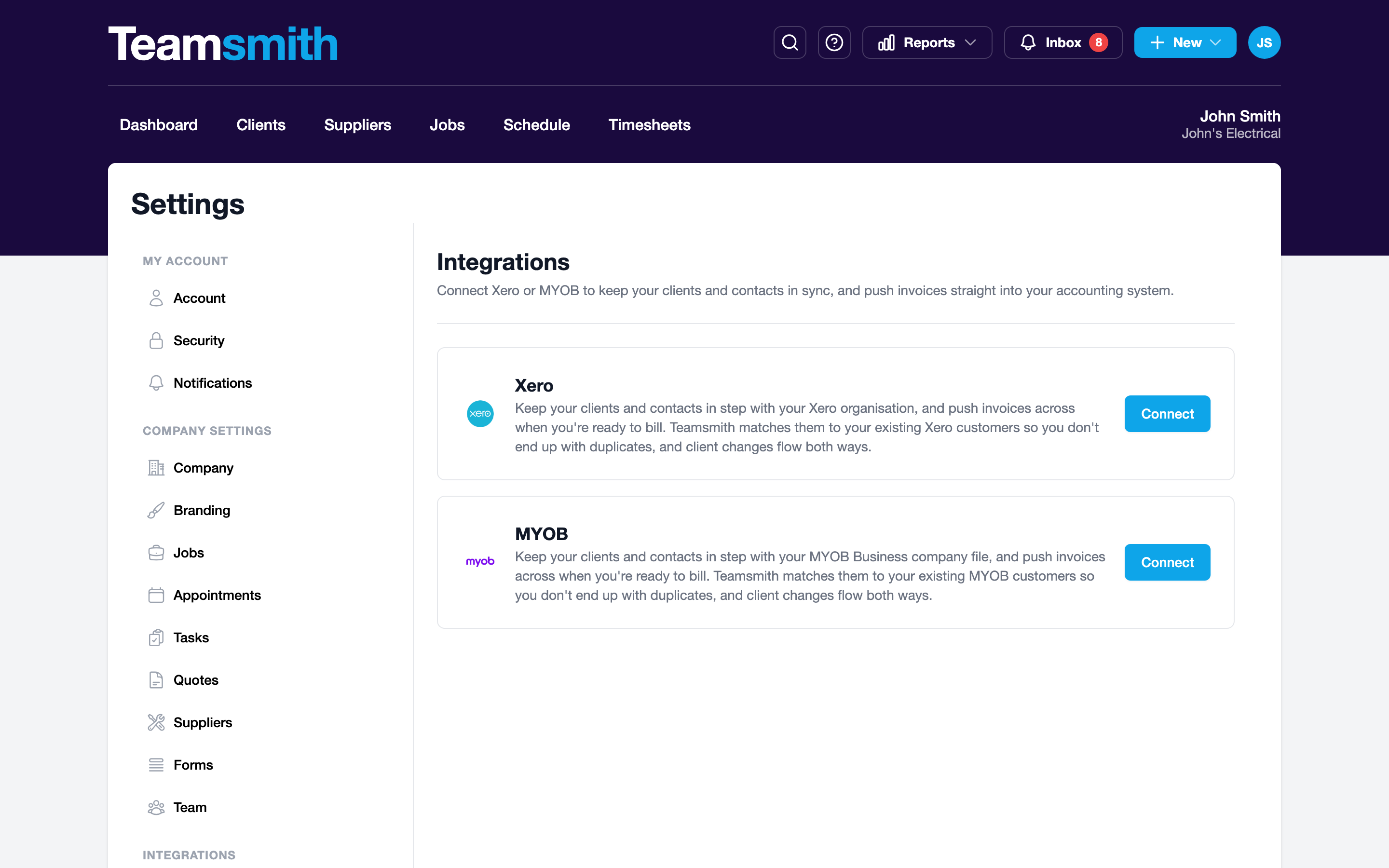
Go to Settings → Integrations and choose MYOB. You'll be sent to MYOB to log in and approve access, then returned to Teamsmith, connected.
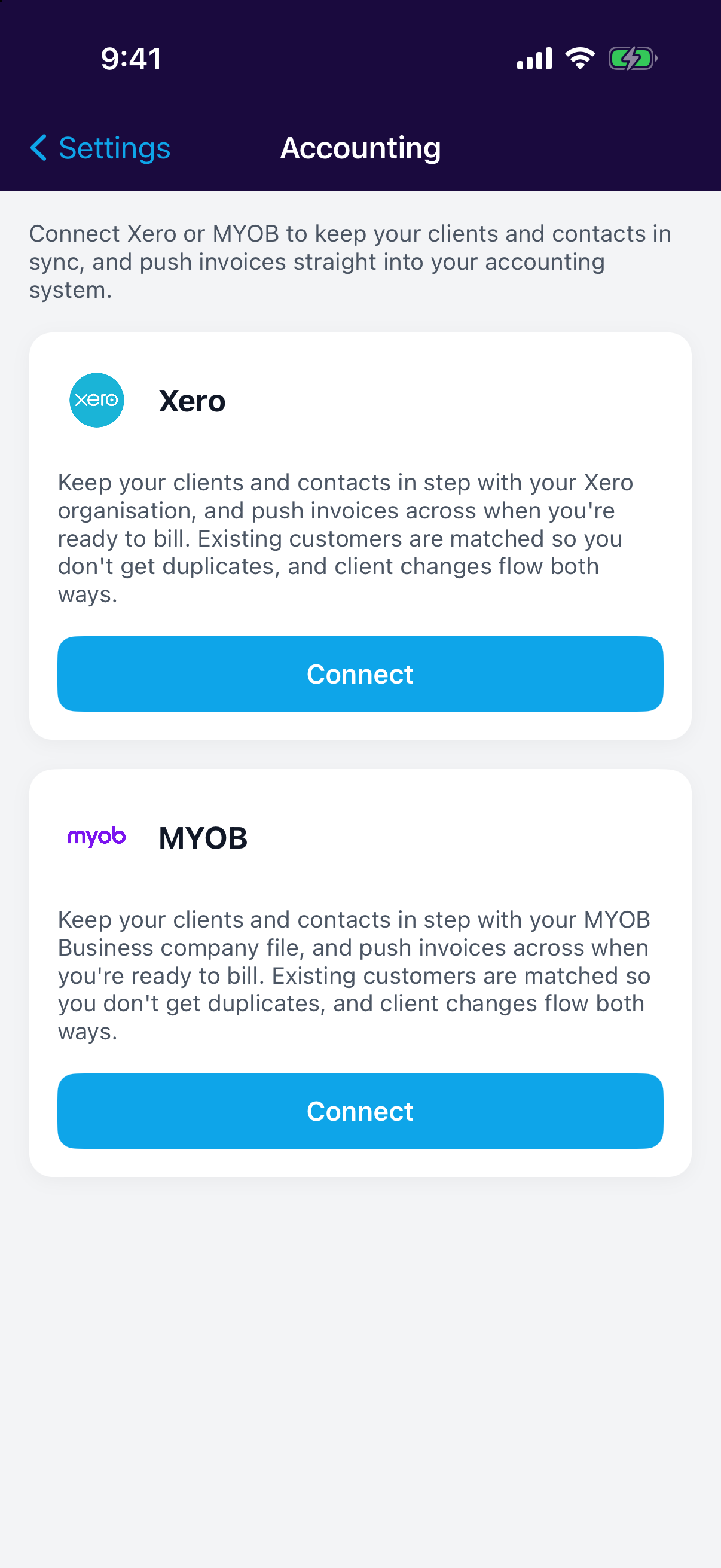
Go to Settings → Accounting and choose MYOB. Log in and approve access when MYOB prompts you, and you'll return to Teamsmith connected.
One or the other
Connect the accounting software you actually use. If you're on Xero instead, see Connecting Xero.