Work orders are raised against a job to send work or materials to a supplier or subcontractor. Build one, pull its line items straight from one of the job's quotes, and email the PDF to your supplier, with no re-typing.
Raising the work order
Open the job and go to the Work Orders tab, then choose New Work Order. Pick the supplier and add your line items. To save typing, pull the items from one of the job's quotes instead of entering them by hand.
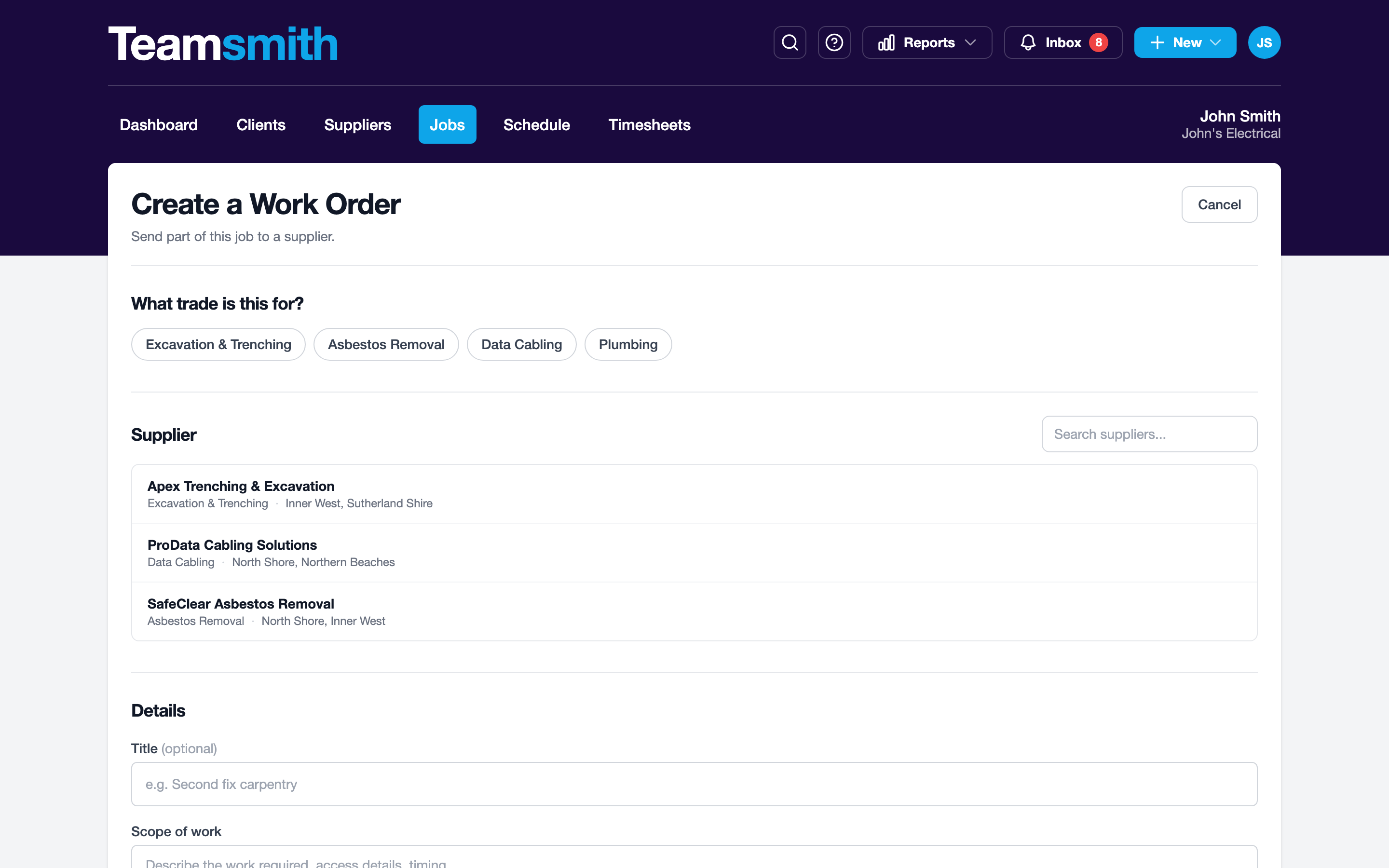
Open the job, go to Work Orders and tap New Work Order. Pick the supplier, then pull the line items from one of the job's quotes or add them yourself.
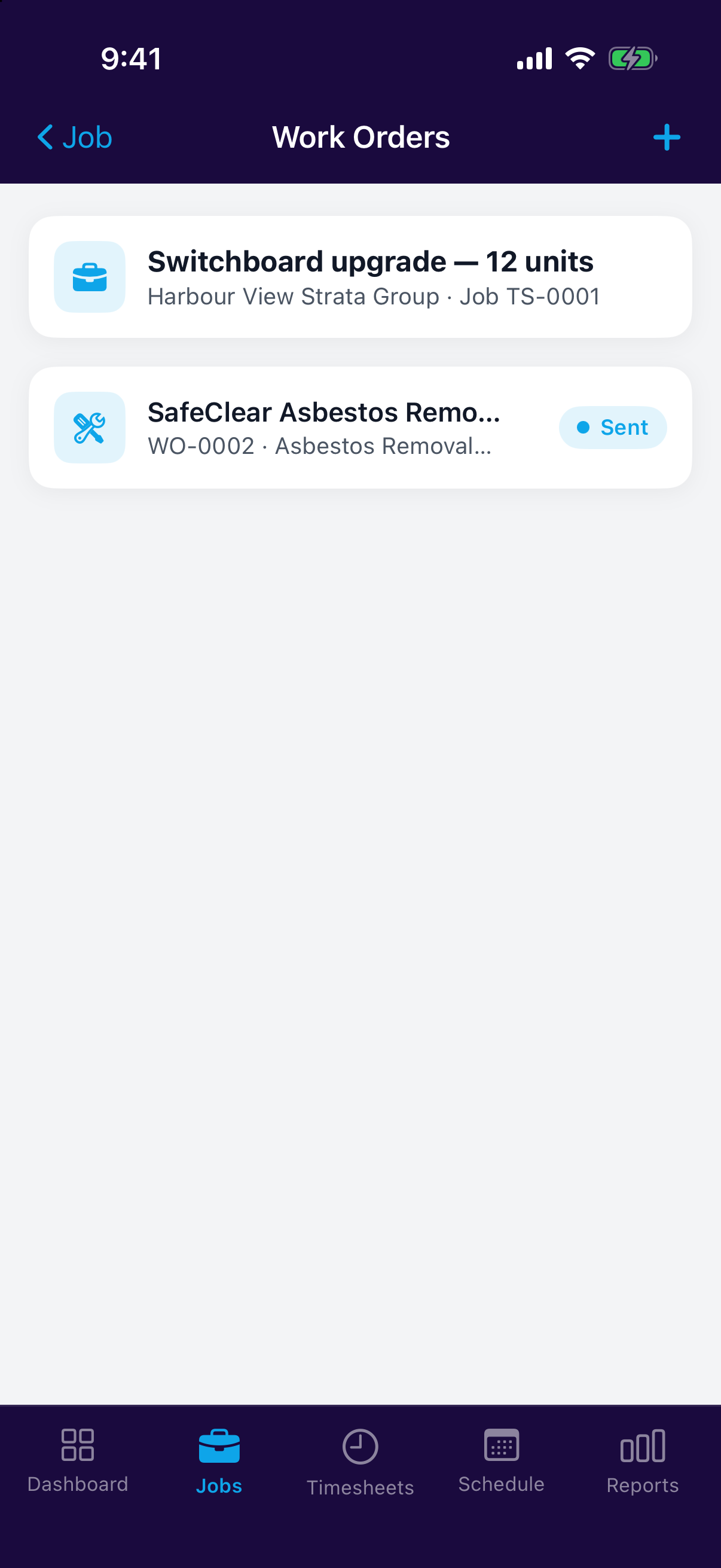
Starting from the quote instead
If the work you're sending out is priced on an accepted quote, start there: the quote's Next steps offers Create Work Order, and the form opens with that quote's lines already ticked. Untick whatever you're keeping in-house, pick the supplier and send. See After a Quote is Accepted.
A line item can only sit on one live work order, so anything already sent to another trade won't be offered again.
Send it to your supplier
A work order produces a PDF. Email it to the supplier directly from Teamsmith so they've got the job details in writing.
Pull, don't re-type
Pull line items from the job's quote and the work order builds itself.
Want to see what you're spending? Reports cover supplier spend, subcontract margin, outstanding work orders and work-order spend.