The dashboard is the first thing you see when you sign in. It pulls together the numbers that matter, the state of your jobs and what's happening next, so you can see where the business is at in a glance.
The financial summary
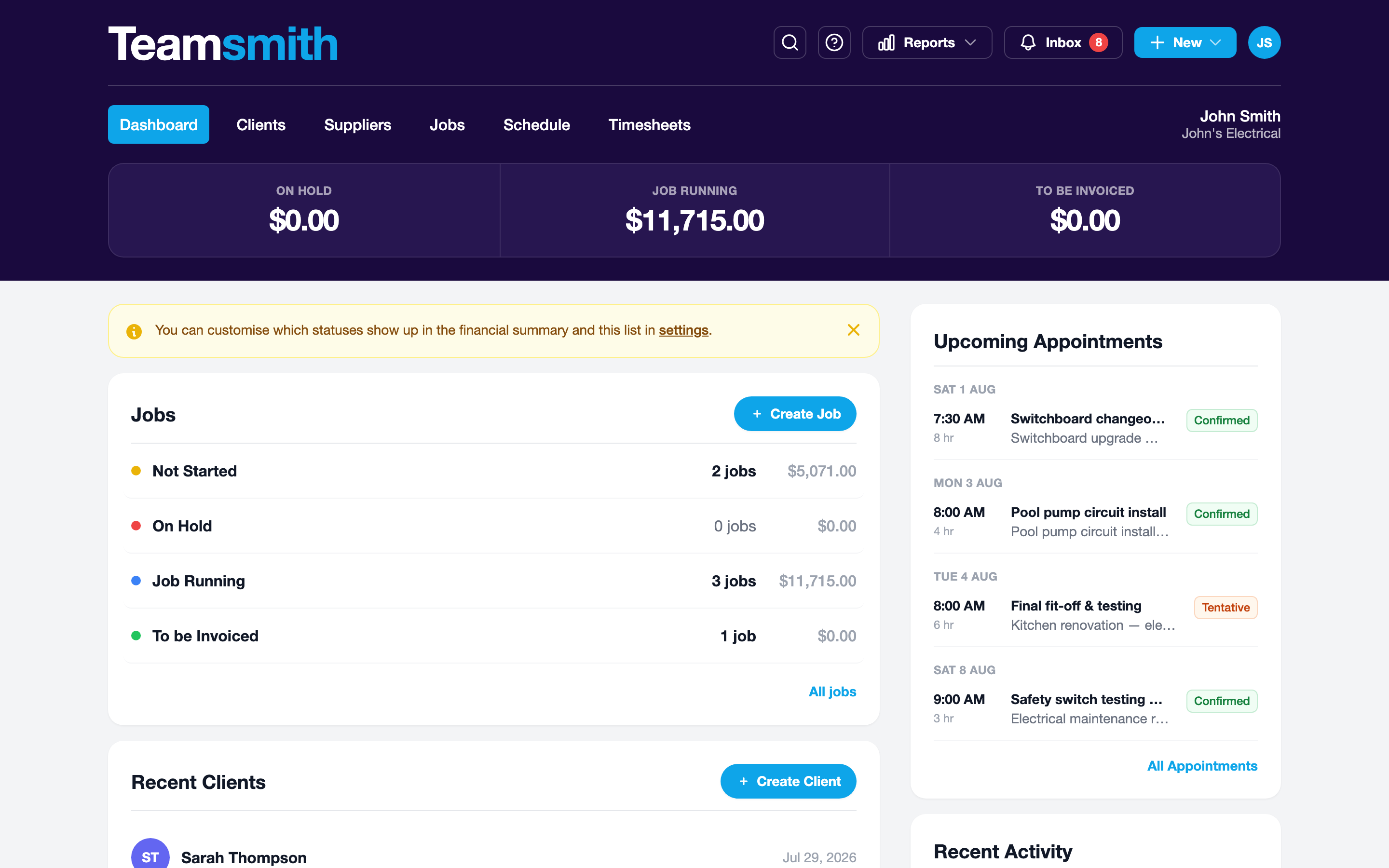
Across the top is a band of totals: the dollar value of jobs in each of your key statuses (for example, work quoted, work in progress and work ready to invoice). It's the quickest read on how much work is in the pipeline and how much is waiting to be billed.
These totals are yours to shape
The statuses shown here aren't fixed. Choose which ones appear in the financial summary, and in the jobs breakdown below it, under Settings → Jobs.
Jobs by status
Below the summary, a card breaks your jobs down by status so you can see where everything sits: how many are quoted, in progress, on hold or done. Use it as a worklist: click through to open the jobs in any status.
Recent clients, appointments and activity
The rest of the dashboard keeps you current:
- Upcoming appointments: the next bookings on the calendar, so nothing is missed.
- Recent activity: a running feed of what's changed across the business: quotes accepted, invoices paid, jobs updated.
- Recent clients: quick links back to the clients you've touched most recently.
Jobs
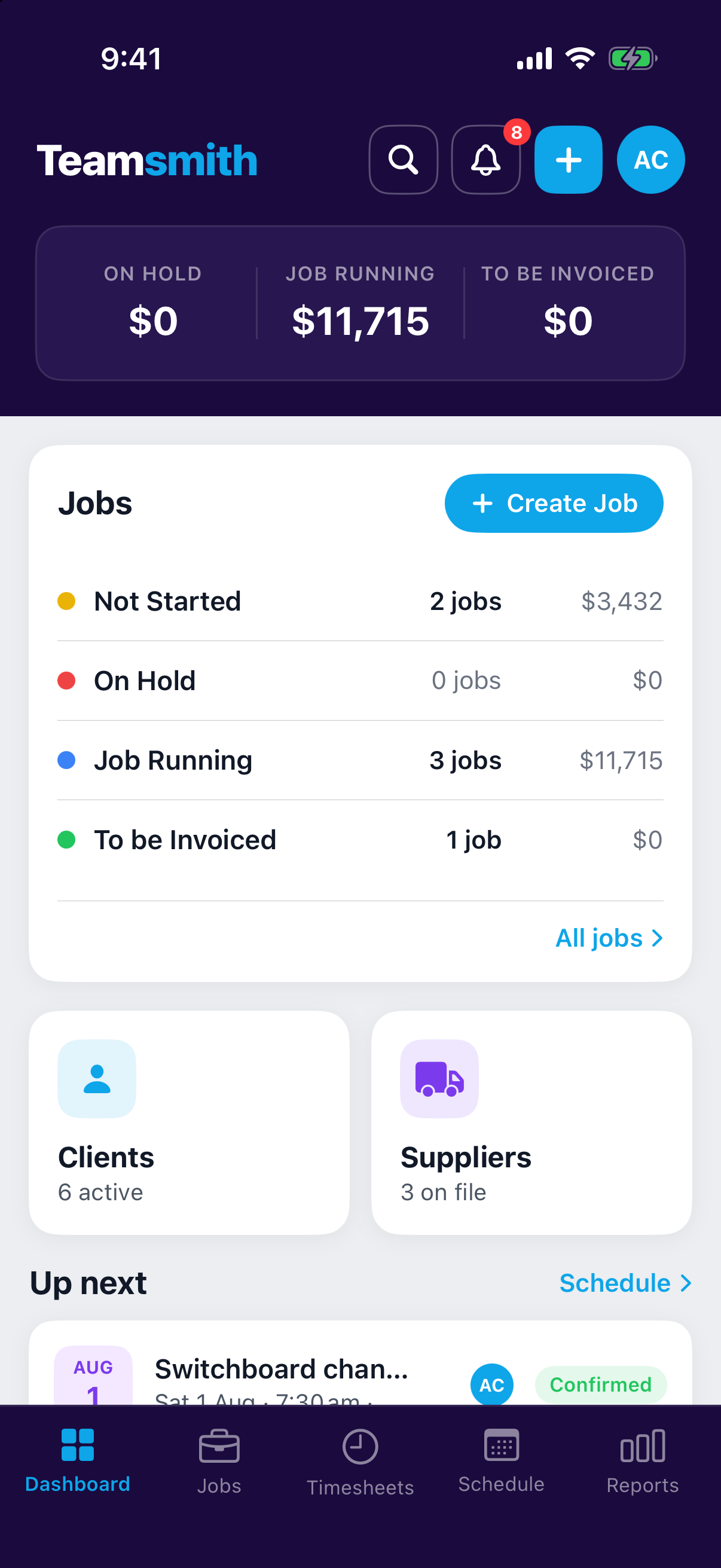
Below the summary, the Jobs card breaks your work down by status: how many jobs are quoted, in progress or done, and the dollar value of each. Tap any status to jump straight to those jobs, or use Create Job to start a new one.
Clients and suppliers
Two link cards give you a running count of your clients and suppliers and take you straight to either directory.
Up next
At the bottom, Up next shows your next appointment and the latest activity across the business, so you always know what's coming and what just changed.
Getting started
If your account is new, the dashboard shows a short onboarding checklist instead: a few steps to set up your business, add your first client and send your first quote. Once you've worked through it, the full dashboard takes over. See Set Up Your Business for the details.