A quote that's been accepted is already a full description of the job: every line priced, agreed and in writing. Rather than re-typing it, an accepted quote offers you the three things you'll want next.
Open the accepted quote and look for Next steps beside it. The same actions are in the quote's ⋯ menu.
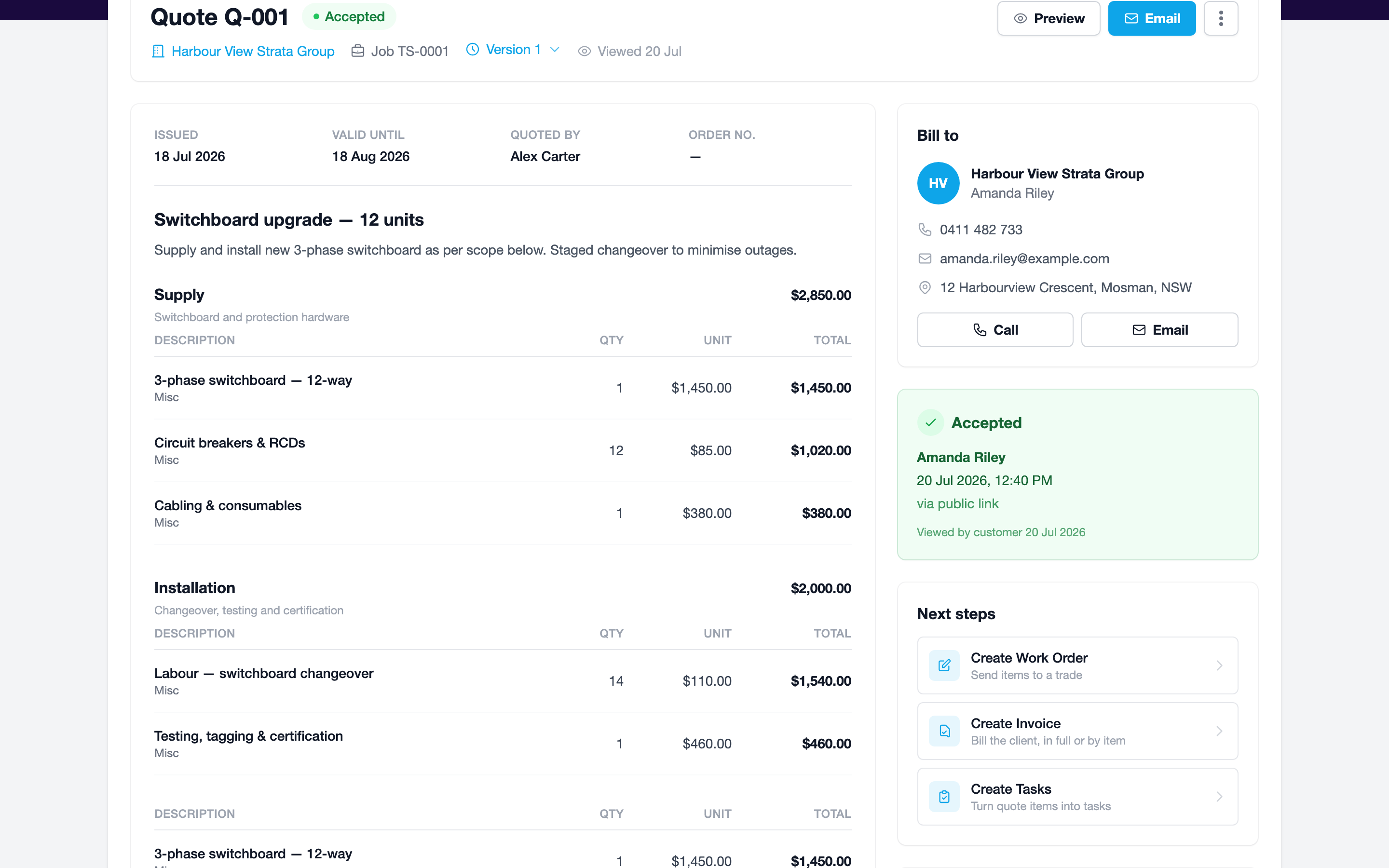
Open the accepted quote and scroll to Next steps. The same actions are under the ⋯ button at the top.
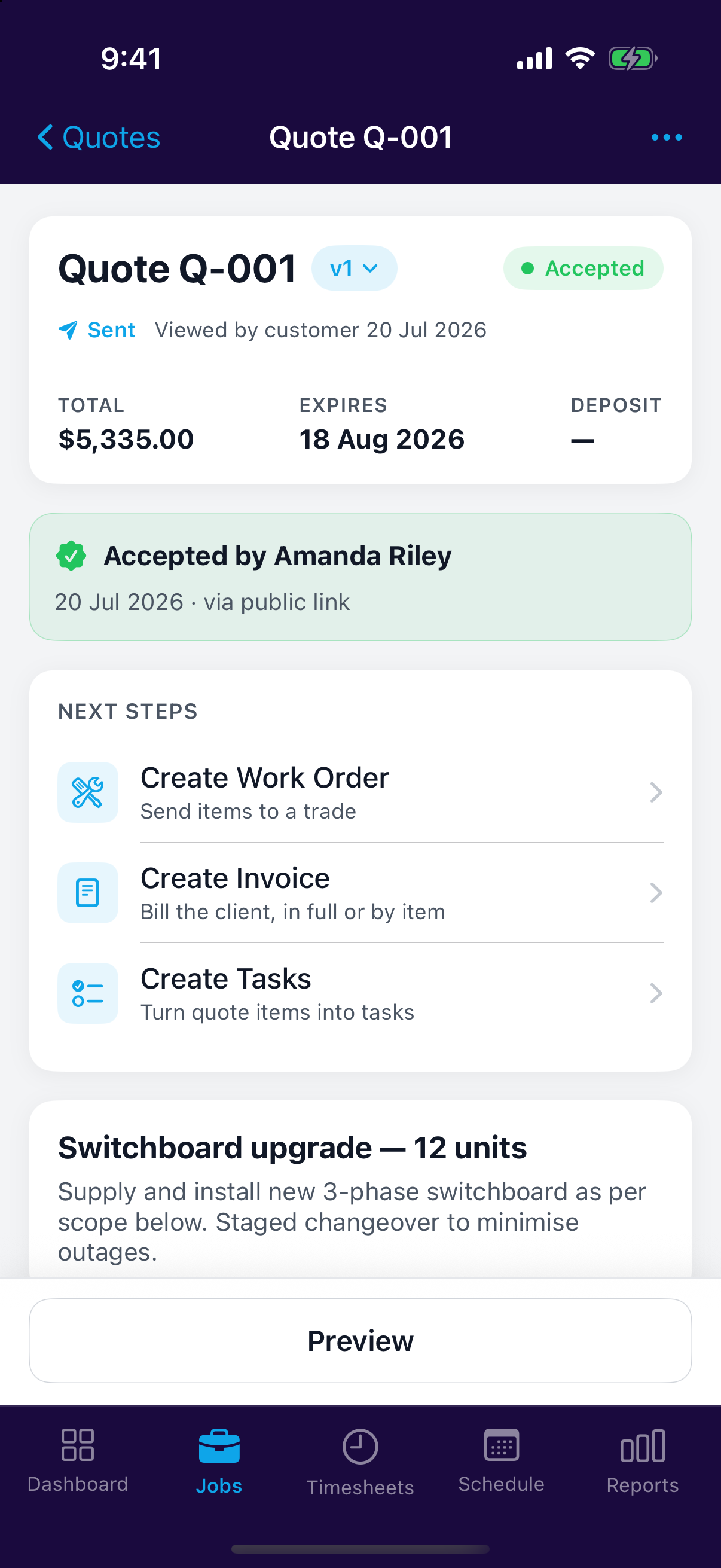
Create a work order
Send part of the job out to a trade. The quote's line items are listed ready to go, all ticked to start with; untick anything you're keeping in-house, pick the supplier and send the PDF.
A line item can only be on one live work order, so anything already sent to another trade won't be offered again. See Creating a Work Order.
Create an invoice
Bill the client for the whole quote, or just the part that's done. See Invoicing from a Quote for the detail, and Deposits & Progress Claims for billing a long job in stages.
Create tasks
Turn the quote's line items into to-dos on the job, so the work you've priced is the work that gets tracked. Every line is listed with its own tick box; untick the ones that aren't really jobs to do, and rename any that read better as an instruction.
If you've got a team, each task gets its own assignee, and there's an assign all to picker for when the whole lot goes to one person. Working on your own, there's nothing to choose: the tasks are all yours.
Tasks land on the job's Tasks tab like any other. See Tasks & To-Dos.
Only on accepted quotes
These actions appear once the client has accepted. Until then the quote can still change, so there's nothing solid to order, bill or schedule against.