Deposits, payment terms, hours of work, what you've excluded, how long the price holds: every trade has a handful of conditions that belong on every quote. Write them once in your quote settings and Teamsmith copies them onto each new quote, where you can still adjust them for the odd job that's different.
Setting your default terms
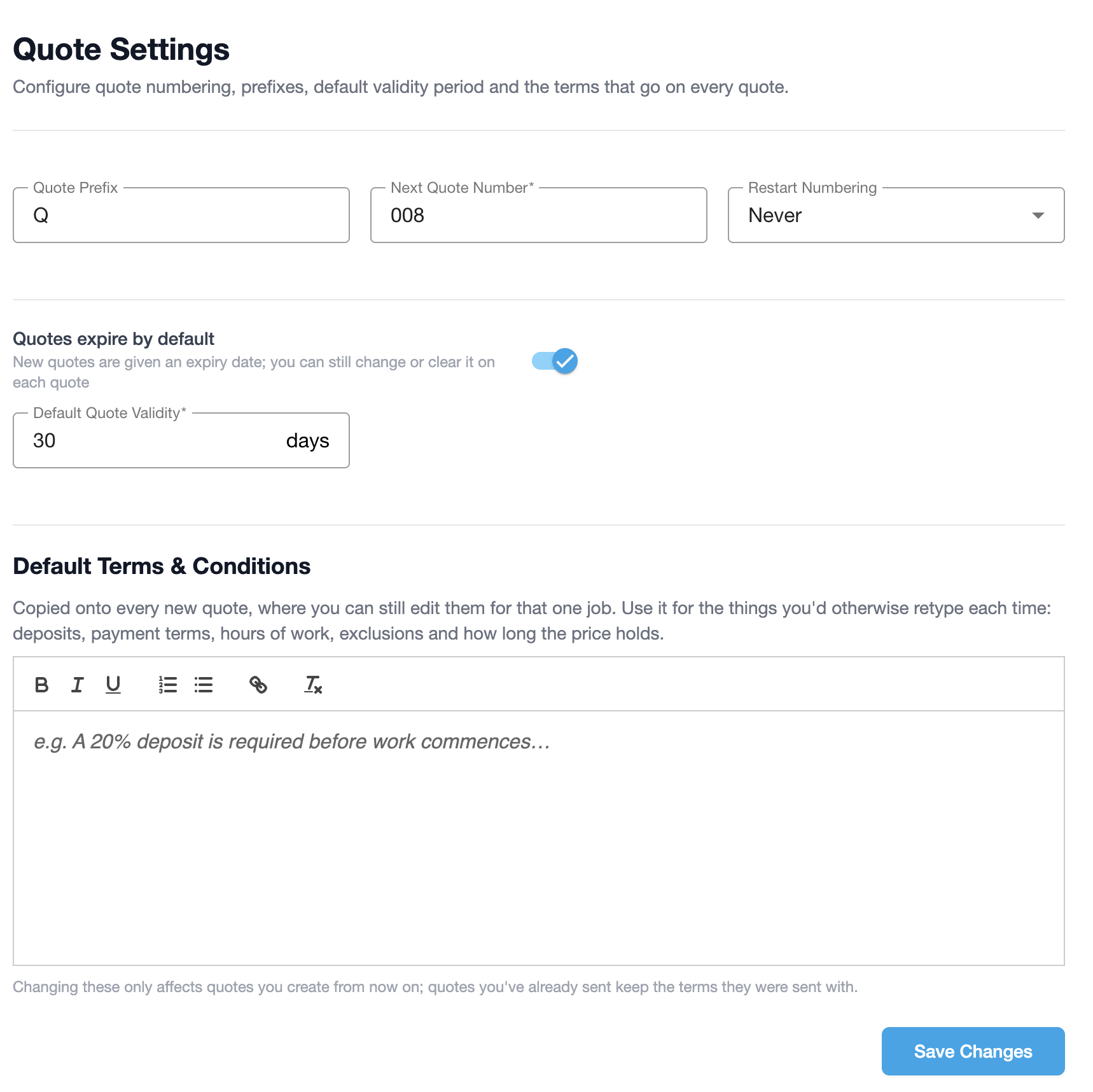
Go to Settings → Quotes and write your terms in the Default Terms & Conditions editor. You get bold, italic, underline, numbered lists and bullets, so a numbered list of conditions comes out looking like one.
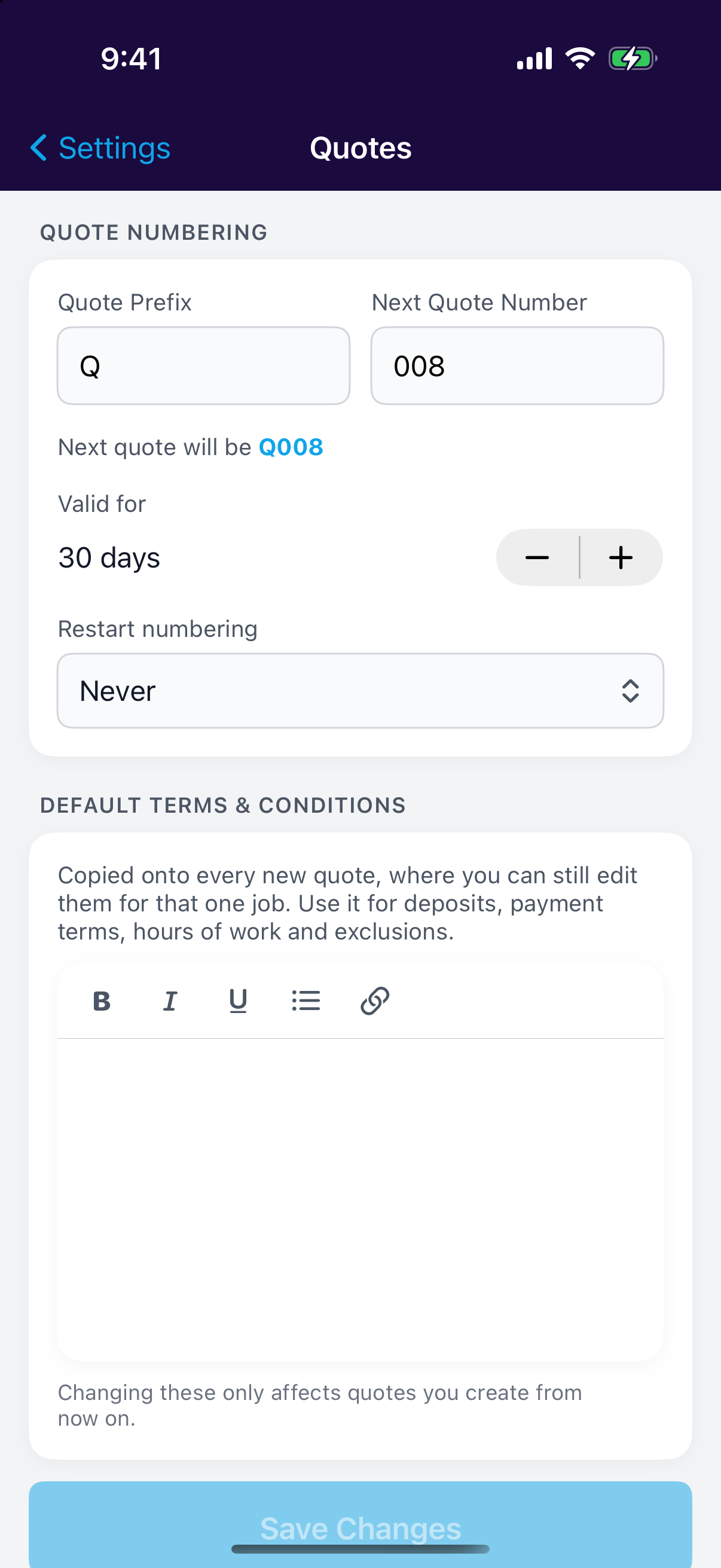
Tap your avatar, then Settings → Quotes, and write your terms in the Default Terms & Conditions editor. The formatting bar gives you bold, italic, underline and lists.
Not sure what to put in? Most trades cover:
- The deposit, and when it's payable
- Payment terms, and what happens if an invoice runs late
- Hours of work, and whether weekend work is possible
- What the price excludes, and who's responsible for other trades' waste or damage
- How long the price holds before it needs reviewing
Set it once, change it anytime
Editing your default terms only affects quotes you create from then on. Quotes you've already sent keep the terms they were sent with, so a client's copy never changes under them.
Your default deposit
The same settings page carries your default deposit. Switch it on, set a percentage, and every new quote arrives with that deposit already applied — no re-typing 20% on every job.
It's calculated on the subtotal, excluding GST, which is the same basis the quote itself uses, and you can still change or remove it on any individual quote. Leaving the toggle off means new quotes start with no deposit.
Changing them on a single quote
Every new quote arrives with your default terms already filled in, in a Terms & Conditions section below the pricing. Edit them there and the change applies to that quote only; your defaults stay as they are.
That's the place to add a job-specific condition, like site access arrangements or a longer lead time on a special-order part.
Revising a quote carries the terms across to the new version rather than re-pulling your defaults, so a quote you've been negotiating keeps the wording the client has already seen. See Quote Versions.
Where they appear
Terms show up in all three places the client might look: on the quote PDF, under a Terms & Conditions heading after the totals; on the online quote page, immediately above the accept and decline buttons; and on the quote in Teamsmith, so you can check what a client was sent.
Because the client reads them before accepting, accepting the quote online means accepting the terms with it, with a name, signature and timestamp recorded against it. See Online acceptance.
Read it as a client would
Send yourself a test quote once your terms are set. Long terms will push the PDF onto a second page, which is fine, but it's worth seeing where the break lands.