Quotes are created against a job. However you build one, it picks up your branding automatically: logo, colours and business details.
Building the quote
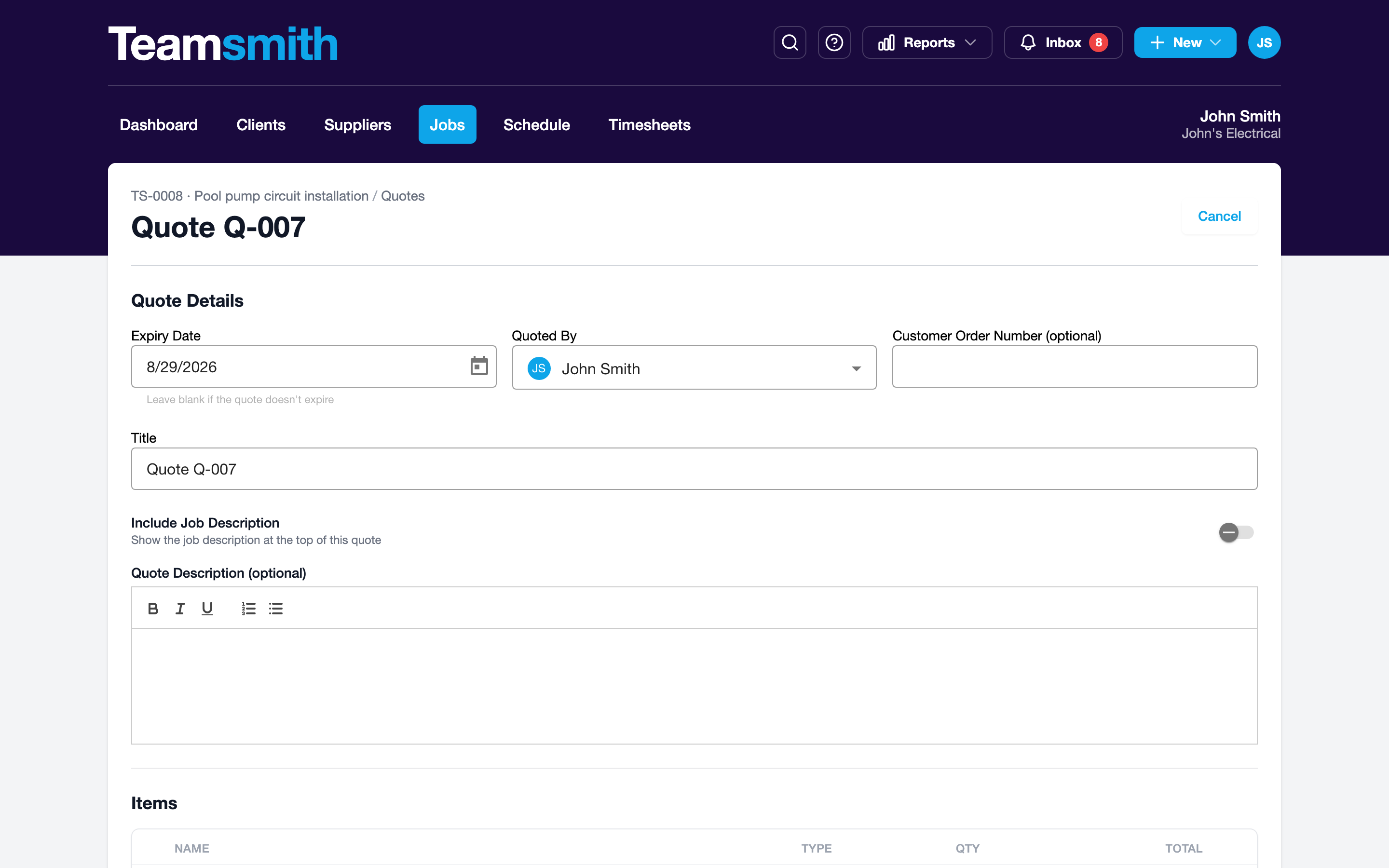
Open the job and click New Quote. Each line item is one description box alongside its quantity and price — the box grows as you type, so a line can carry as much scope as the job needs. Press Tab to move across the fields and Enter for a new line within a description, so you can build a full quote without touching the mouse.
Items are grouped into sections — handy for splitting a job into stages or areas, like Kitchen and Bathroom. Naming a section is optional: leave the name blank and the items simply appear on the quote without a heading, so a short quote never has to carry structure it doesn't need.
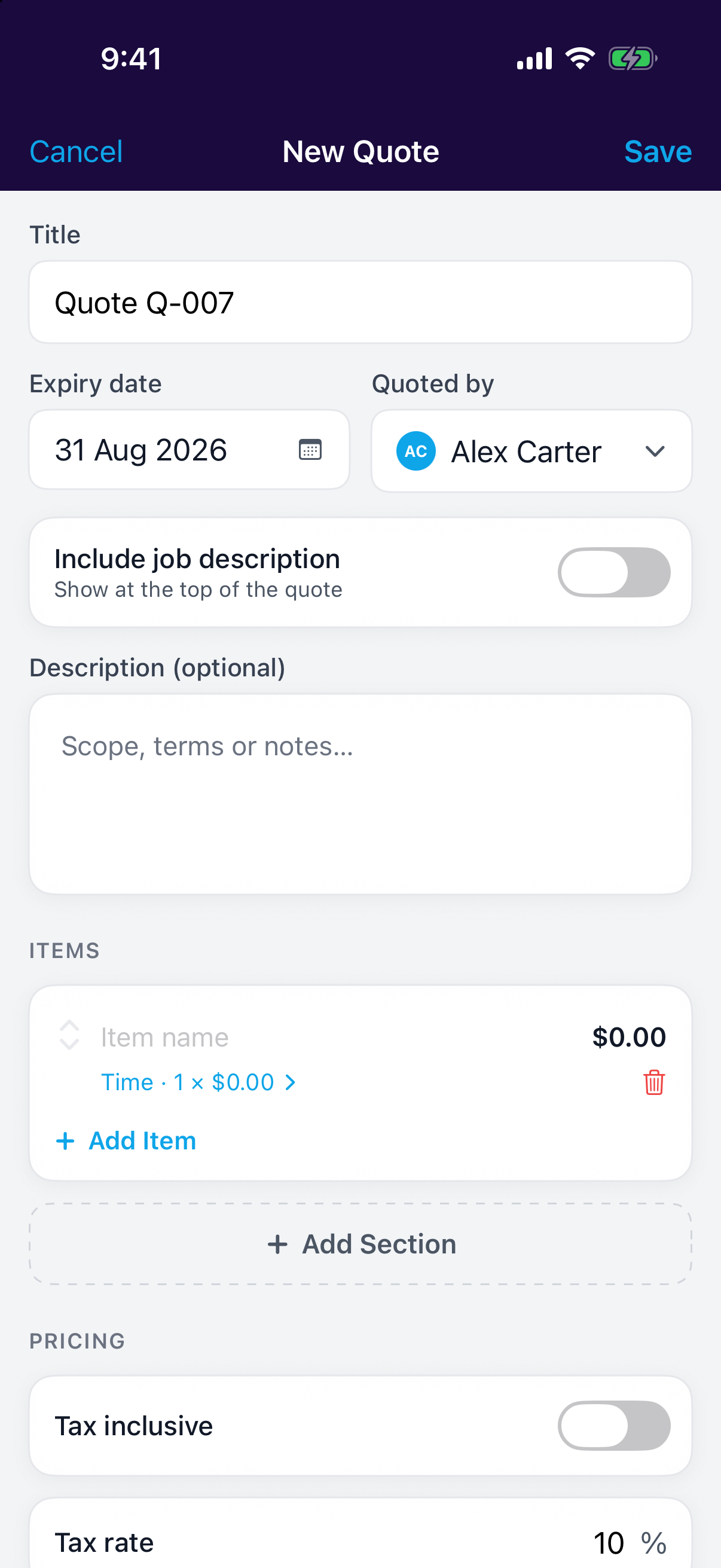
Open the job and tap New Quote. Add line items with a description, quantity and price — the description grows as you type, so a line can run to several lines of scope. Items are grouped into sections; name a section to give it a heading on the quote, or leave the name blank for none. Everything's sized for one-handed use, so you can price a job standing in the client's driveway.
Terms and conditions
Every quote arrives with your default terms already on it: deposits, payment terms, exclusions and the rest. Edit them on the quote if this job needs something different, or set them up once in Settings → Quotes. See Quote Terms & Conditions.
Preview and send
Preview the PDF exactly as your client will see it, then email it directly from Teamsmith. The email goes from your business, with the quote attached and a link to view and accept it online.
Speed wins work
The first quote back usually wins. Building and sending from your phone before you've left the driveway is the single biggest habit that wins more jobs.
Once it's sent, track whether the client has viewed or accepted it; see Online acceptance.