Invoices are raised from the job, never as standalone documents. Open the job, go to its Invoices tab, and raise the invoice from there. It picks up your branding automatically and produces a PDF emailed from your business.
You can raise one by hand — typing your own line items — or let Teamsmith prepare it for you from a quote or from tracked time. Either way it starts as a draft you can edit before it goes anywhere.
What Teamsmith can prepare for you
The job's billing type decides what gets prepared when you generate an invoice:
- Fixed fee: the job subtotal, minus anything already invoiced.
- Do & charge: your tracked billable time entries that haven't been invoiced yet.
- Non-billable: not invoiced at all.
None of this stops you raising an invoice by hand. Extra works, a call-out fee, materials sold on the day — anything that isn't on a quote and isn't tracked time gets typed straight onto a new invoice.
Raise it from the job
Open the job, go to the Invoices tab and choose New Invoice. Add your line items — description, quantity, unit price and an optional discount. A title is optional; the invoice number identifies the invoice, so only add one when it says something useful ("Additional works — switchboard upgrade", say). The subtotal, GST and total add up as you type. GST is worked out automatically: 10% when your business is registered for GST, or nothing when it isn't (or when the client is marked as not charged GST).
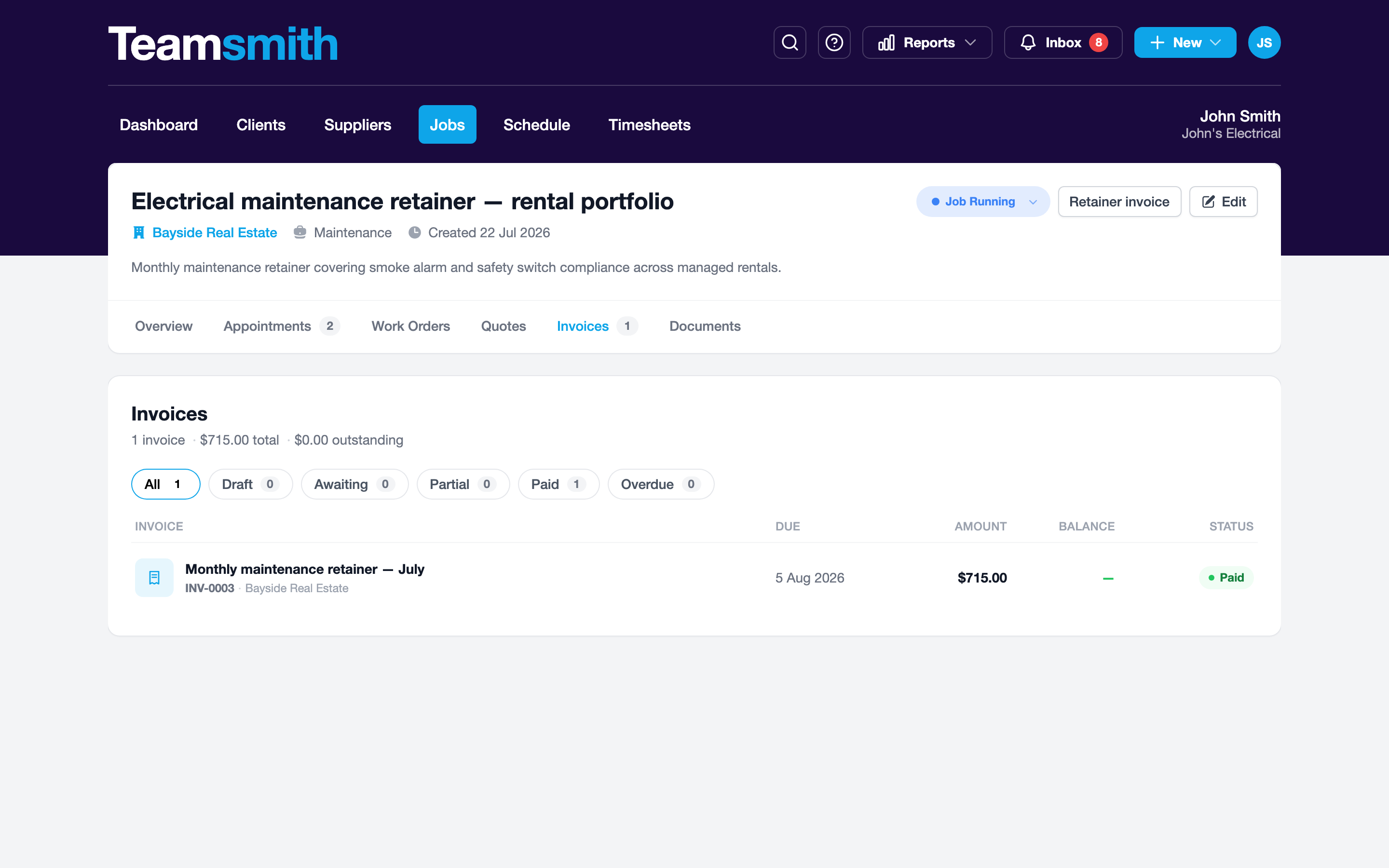
On a do & charge job the same tab also offers Invoice time, which fills the line items in for you.
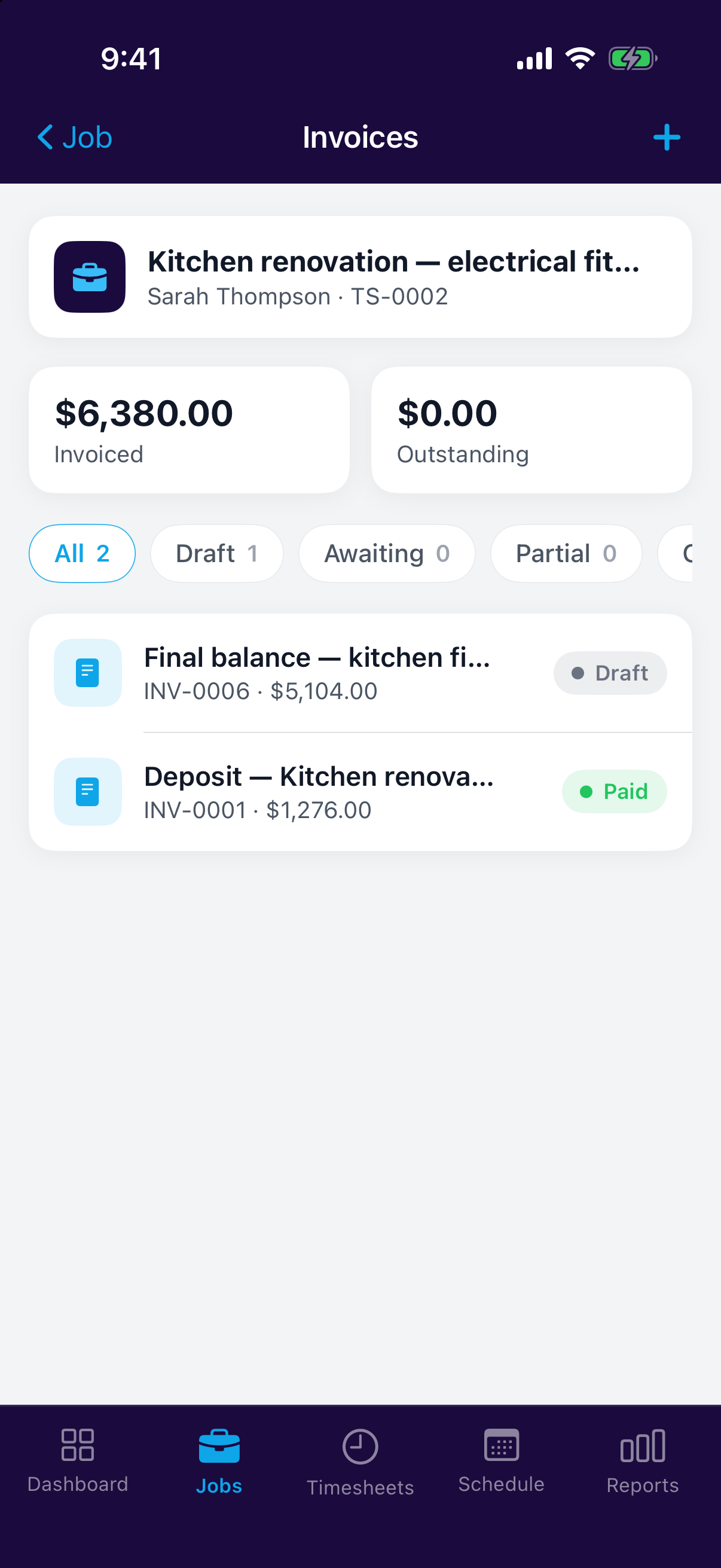
Open the job, tap through to its invoices and tap +. Add your line items; tap a line to set its quantity, unit price and discount. A title is optional — the invoice number does the identifying. On a do & charge job the + offers New invoice alongside Invoice time.
Numbering and payment terms
Invoices number themselves: each new one takes the next number in your sequence, with the prefix you've chosen. Under Settings → Invoices you can change the prefix and the next number, and the page shows exactly what your next invoice will be numbered.
The same page sets your default payment terms — how many days after an invoice is issued it falls due. New invoices pick this up automatically, and you can still change the due date on any individual invoice. Set it to 0 and invoices are due on receipt.
Edit before you send
A new invoice is saved as a draft. Open it and edit it as much as you like — line items and the optional title — until it's right.
Drafts only
Once an invoice has been sent it becomes part of the customer record and can no longer be edited. Record a payment, write off the balance or delete it instead.
Preview and send
Preview the PDF exactly as your client will see it, then email it directly from Teamsmith.