An invoice goes Overdue on its own; it's derived from the due date, not a status you set. Once the due date passes and there's still a balance owing, the invoice reads as overdue.
Automatic reminders
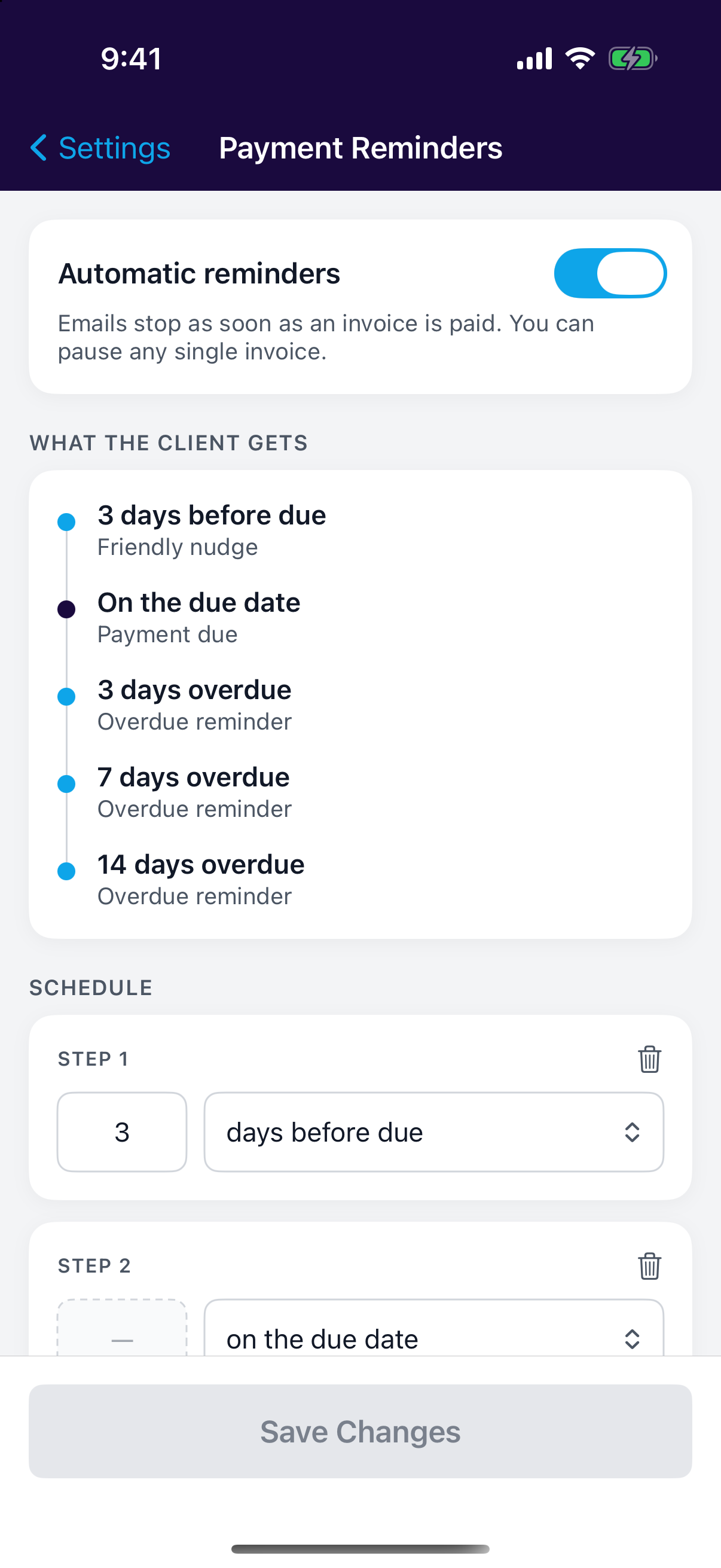
Teamsmith can chase payment for you. Out of the box it emails the client a friendly nudge three days before the invoice is due, again on the due date, and then at three, seven and fourteen days overdue. Each reminder carries the invoice PDF, and the pay-online button if you've set up card payments.
Reminders stop on their own the moment the invoice is paid or written off, so a client never gets chased for money they've already sent.
Set your own schedule
Under Settings → Invoices you can turn automatic reminders on or off for your business and set the steps to whatever suits you. Add or remove steps, and choose how many days before or after the due date each one goes out. (The same page sets your invoice numbering and default payment terms — see Creating an invoice.)
Each step is one email. As you edit the schedule, What the client will get shows the whole run in order, so you can see how many emails an unpaid invoice will actually produce before you save.
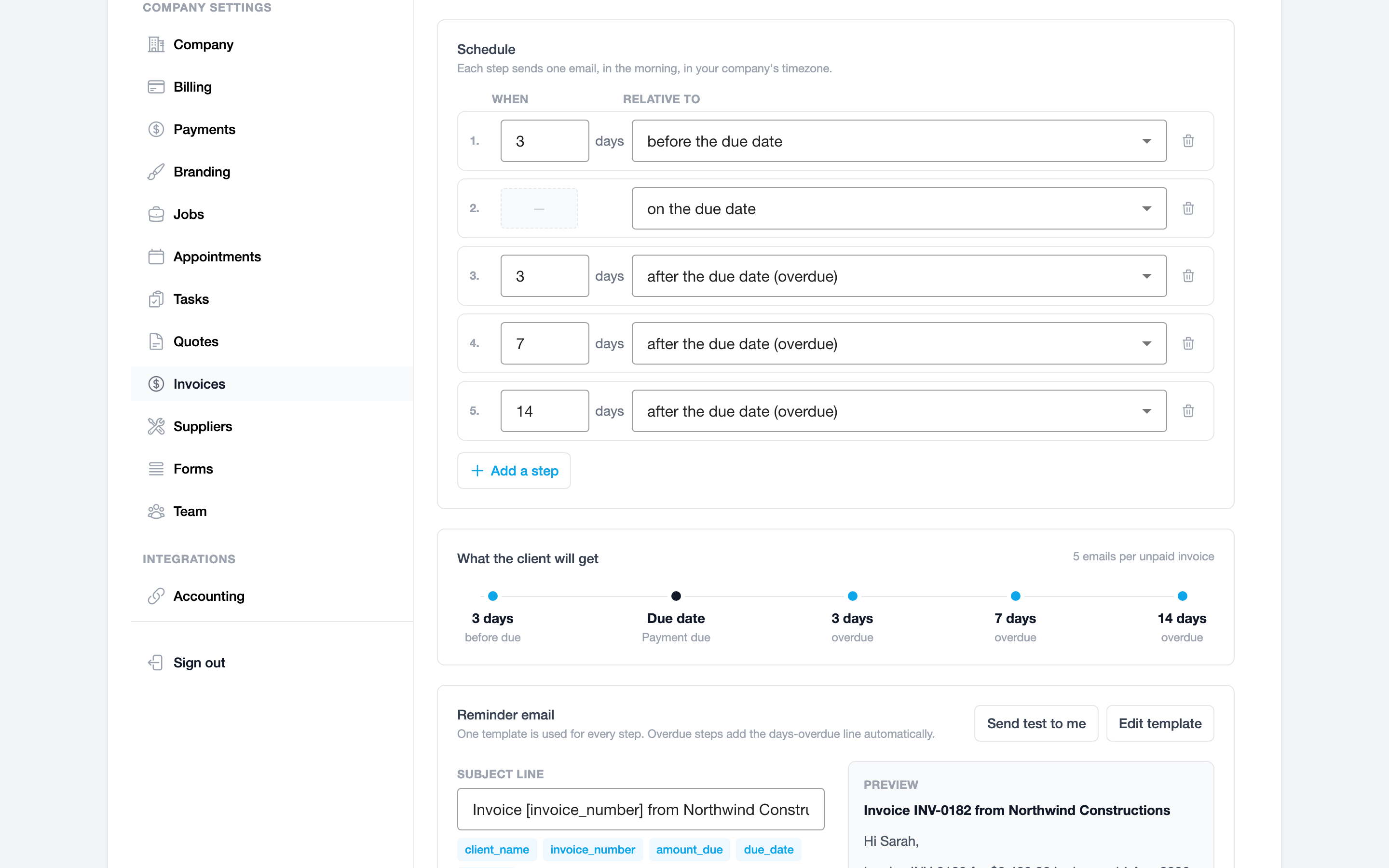
The same settings live under Settings → Payment Reminders in the app.
Sent during business hours
Reminders go out in the morning in your business's timezone, never in the middle of the night.
Word the email yourself
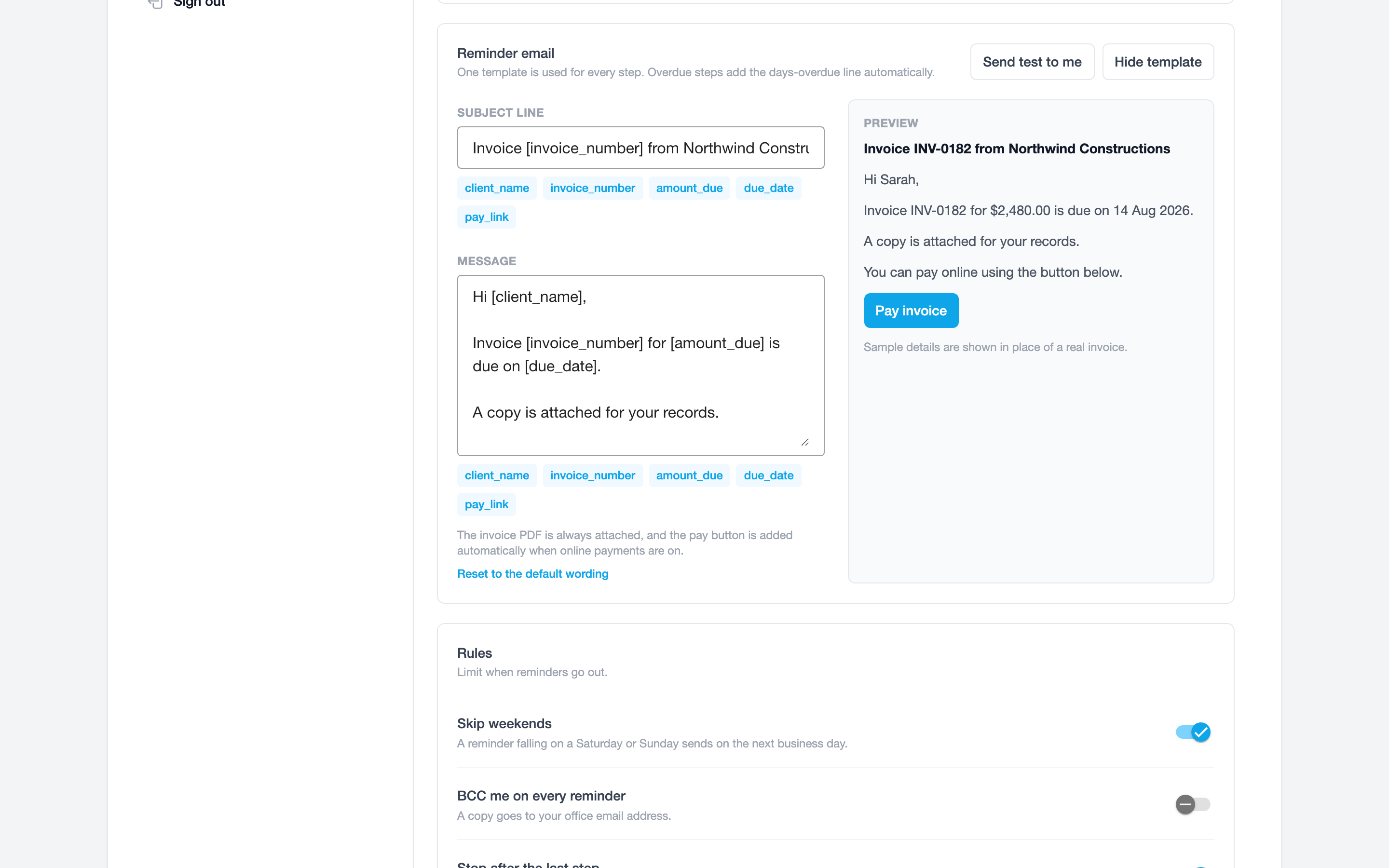
One template covers every step, so you write the wording once. You can edit both the subject line and the message, and a preview shows exactly what the client will see.
Drop any of these into the subject or the message and Teamsmith fills them in for each invoice:
[client_name]— the contact's first name[invoice_number]— for example, INV-0182[amount_due]— the balance still owing[due_date]— the invoice due date[pay_link]— a link to pay the invoice online
Use Edit template to open the message alongside the subject line, and click a token to add it to whichever field you're editing.
Tap Edit template to change the subject line and message, then tap a token to insert it.
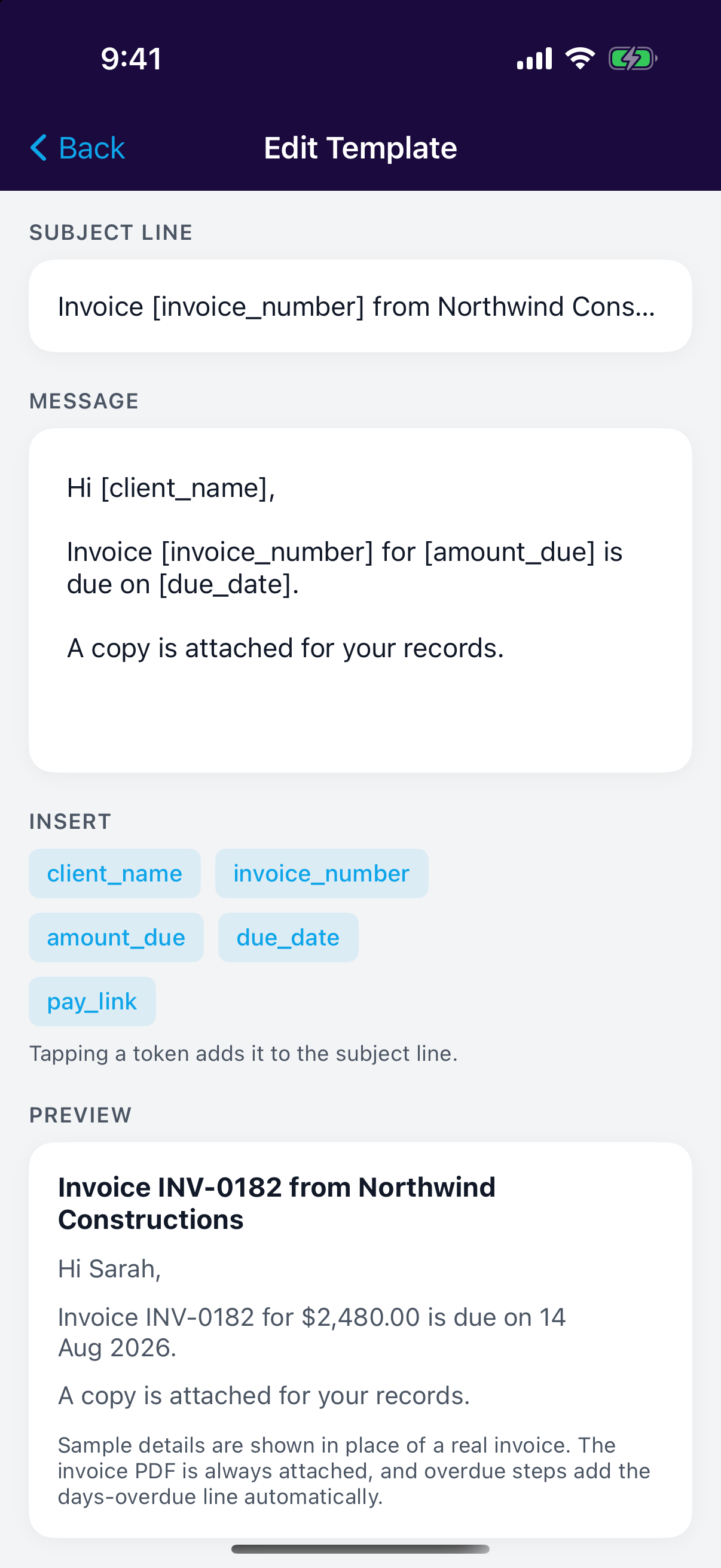
A few things are handled for you, so you don't have to write a template per step:
- The invoice PDF is attached to every reminder.
- Overdue steps add the "this invoice is now X days overdue" line automatically.
- The pay-online button is added when you've set up card payments.
Use Send a test to me to email yourself a copy filled in with sample details. The test uses whatever is on screen, so you can check your wording before you save it. If you'd rather start over, clear the fields (or use the reset option) and Teamsmith goes back to the standard wording.
Reminder rules
Three switches control when reminders are allowed to go out:
- Skip weekends — a reminder that falls on a Saturday or Sunday waits and goes out on the next business day instead. It isn't skipped, just held.
- BCC me on every reminder — sends a copy of each automatic reminder to your office email address, so you have a record without checking the invoice.
- Stop after the last step — on, the schedule runs once and stops. Turn it off and the final overdue reminder repeats weekly until the invoice is paid or written off.
Weekly chasing keeps going
With Stop after the last step turned off, a client with an unpaid invoice keeps hearing from you every week. Good for genuine debtors, heavy-handed for a good customer who's just slow, so consider pausing reminders on that one invoice instead.
Pause reminders on one invoice
Some invoices need to sit outside the schedule, a client on a payment plan, or one you're already talking to. Open the invoice and pause its reminders; everything else carries on as normal. You can still send a manual reminder while it's paused.
Nudge a client yourself
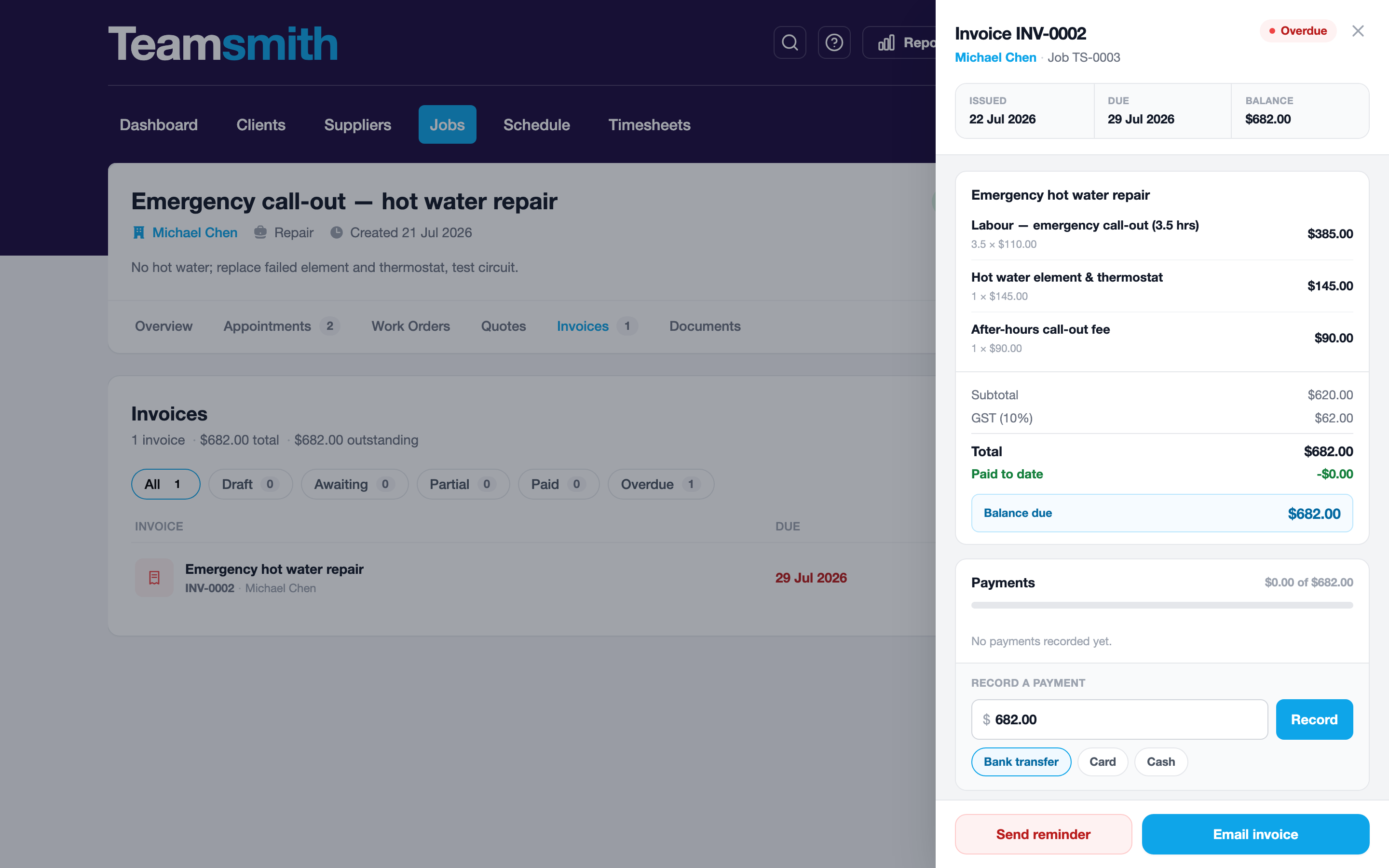
You don't have to wait for the schedule. Send a payment reminder straight from the invoice whenever you like, and edit the message first if you want to say something specific.
Open the invoice and send a payment reminder. It goes out from your business, branded like the invoice itself.
Open the overdue invoice and send the reminder from your phone; chase it up without getting back to the office.
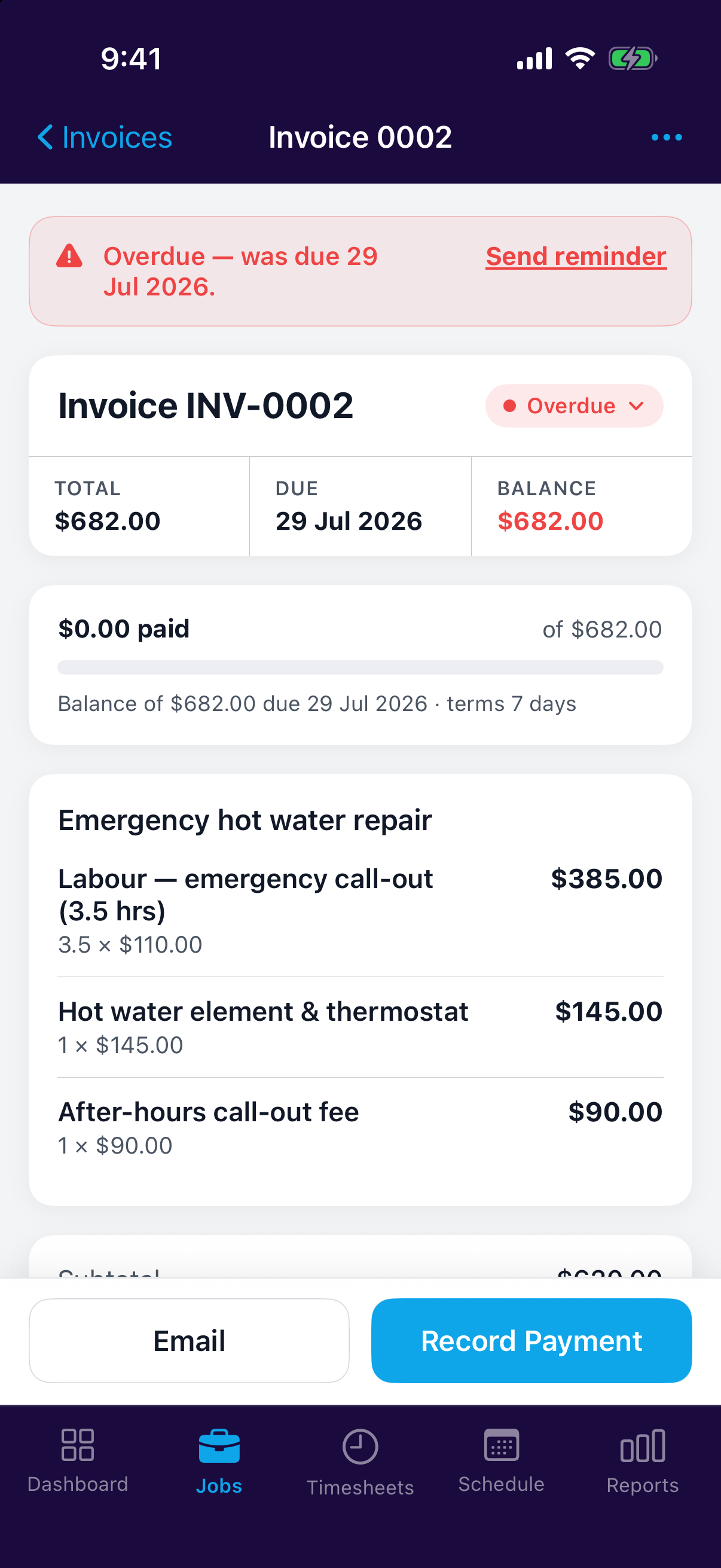
A manual reminder counts as that day's nudge, so the client won't get a second one from the automatic schedule on the same day.
The full picture
For aged receivables across every client (what's owing and how long it's been outstanding), see the Invoice Aging report.