Once online payments are set up, there are three ways a customer can pay an invoice by card: from the invoice email, by scanning a QR code while you're with them, or from their client portal.
From the invoice email
Nothing extra to do; every invoice and payment reminder you email now includes a Pay Invoice Online button. It opens a secure payment page showing the invoice, where your customer pays by card in a few taps.
On-site with a QR code
Finished the job and want to be paid before you leave? Show the payment QR code and your customer scans it with their phone's camera; it opens the same payment page, and they pay by card on their own phone.
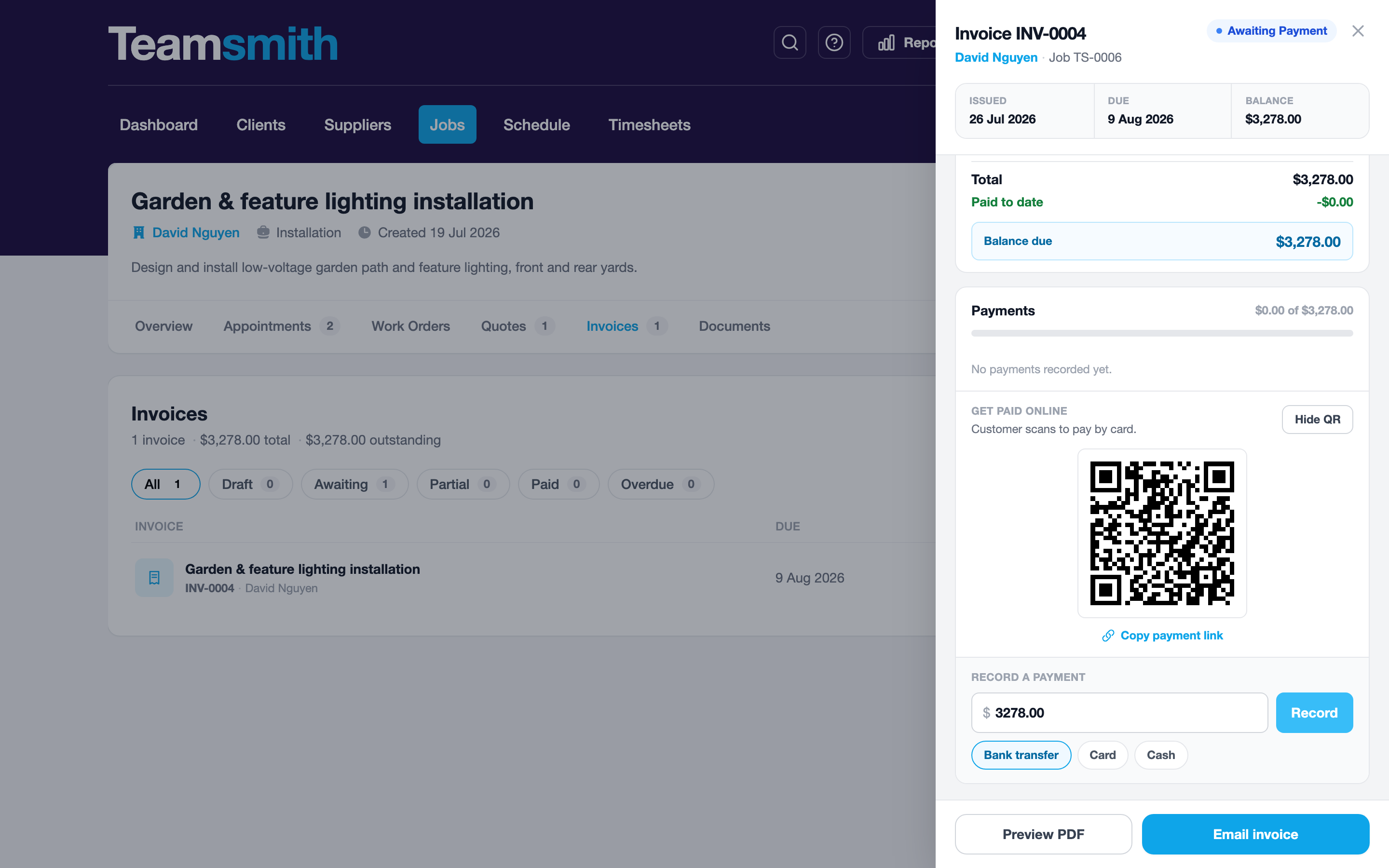
Open the invoice and choose Show payment QR in the Get paid online section. You can also copy the payment link to send by text.
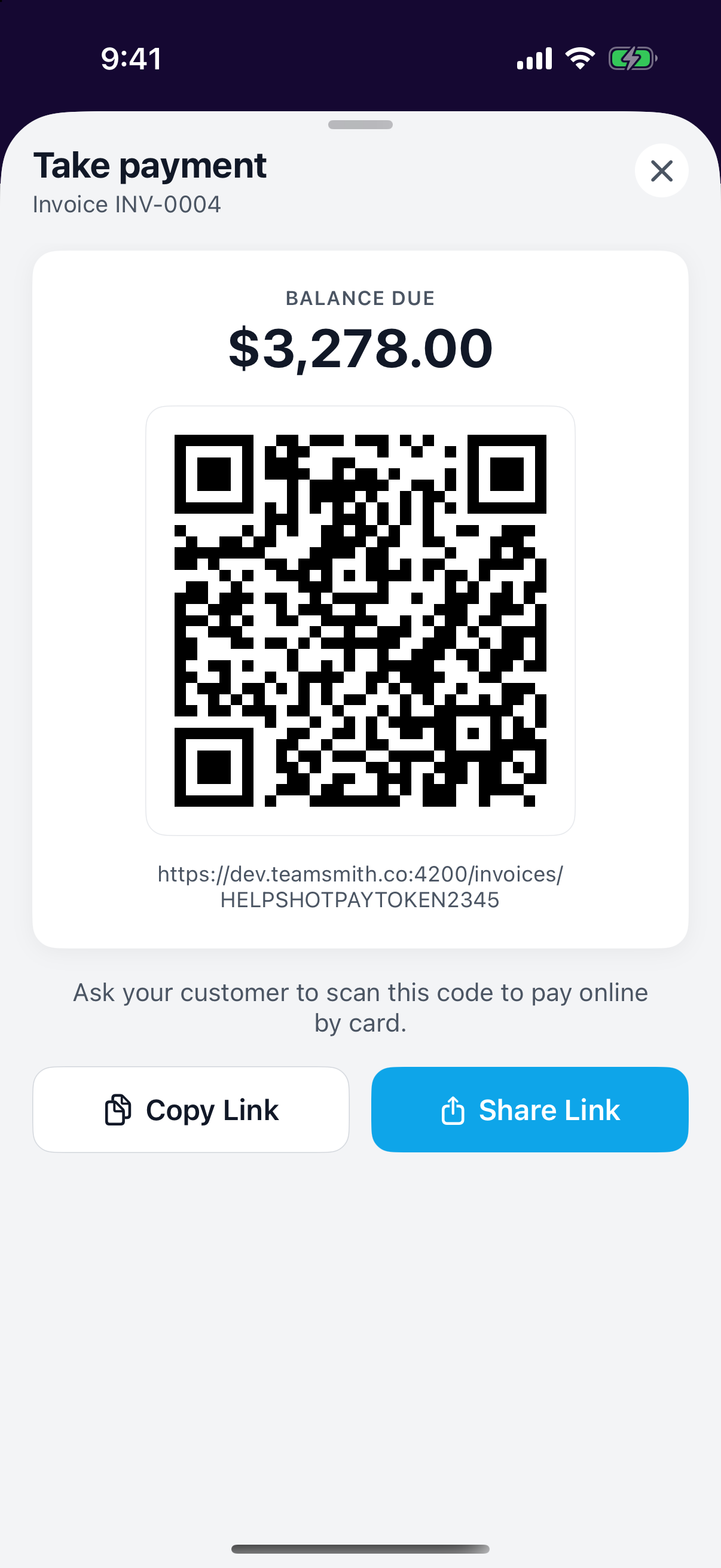
Open the invoice, tap the actions menu and choose Take payment. Hold your phone up and your customer scans the code, or use Share Link to text it to them.
From their client portal
If the client has a client portal, every invoice you've issued them is already sitting there, under the job it belongs to. They open one and pay from the same Pay by card button, without needing to find the original email.
This is the one that saves you the follow-up: a client chasing their own paperwork weeks later has somewhere to go on their own.
What your customer sees
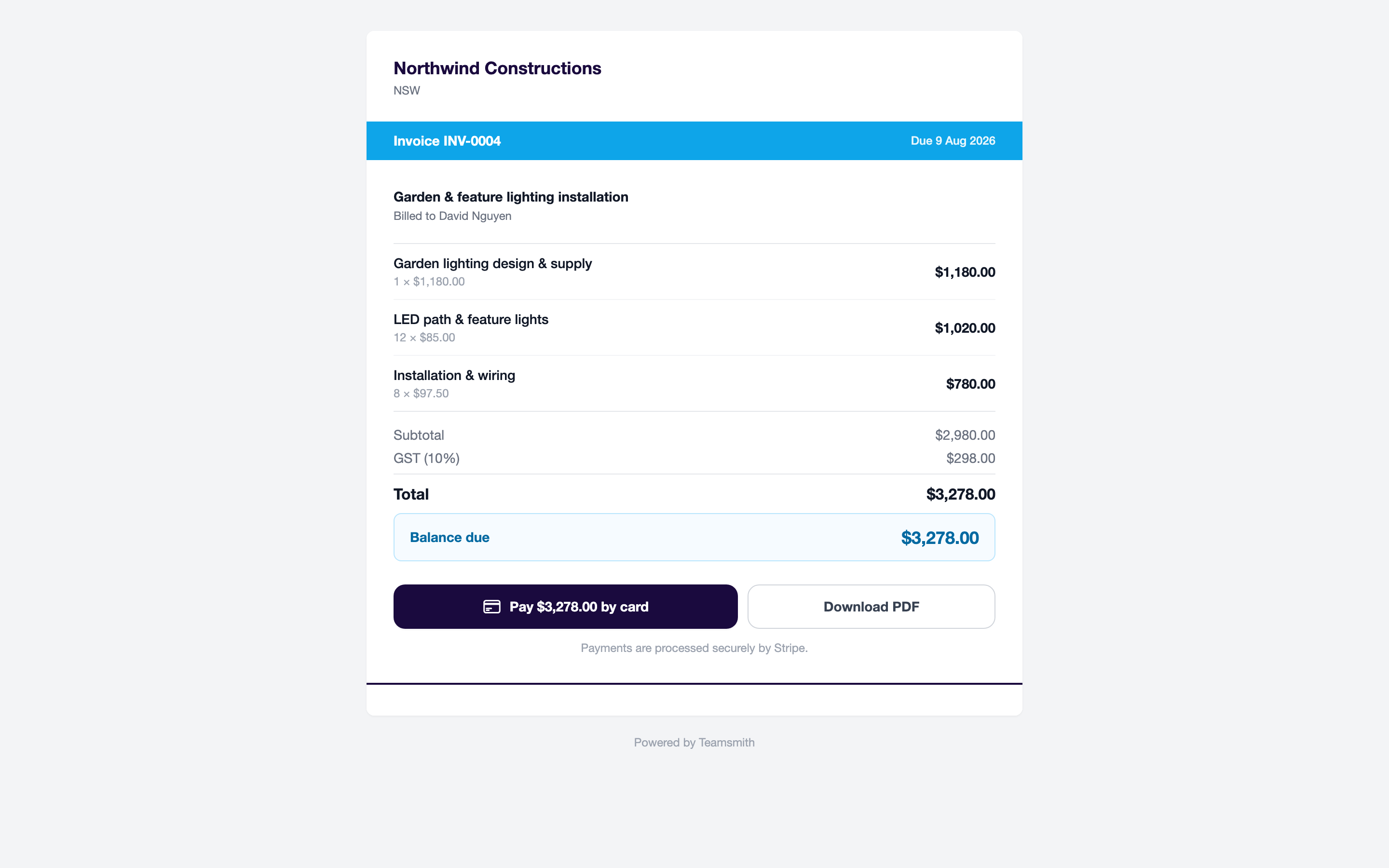
Whichever way they arrive, the invoice looks the same: your branding, the invoice details, what's been paid already and the balance due, with a Pay by card button. They can also download the invoice PDF.
After they pay
The payment is recorded against the invoice automatically: the invoice moves to Paid (or Partial if there's still a balance), it shows in the activity feed, and you're notified straight away.
Draft invoices
Showing a payment QR for a draft invoice marks it as sent, the same as emailing it would, so the paperwork always matches what the customer saw.
Other ways to pay
Cash, bank transfer or cheque? Record those yourself on the invoice; see Recording Payments.